
Bimp overview: modules and interface
On this page
Bimp is an accounting system where warehouse, sales, purchasing, production, finance, and payroll work in one database. All modules are in the left menu: Dashboard, Warehouse, Counterparties, Sales, Purchasing, Finance, Production, Reports, Tasks, Payroll, Fixed assets, and Directories. To see where to start setting up, open the launch checklist.
What Bimp is and what it consists of
Bimp is a system for accounting of inventory, sales, purchasing, production, and finance in one database. A document created in one module automatically appears in the others: a customer order reserves goods in the warehouse, a sale reduces the stock balance, and a payment goes into the financial reports. All articles in this section are listed on the “Getting started” page.
The modules are in the vertical menu on the left. Inside a module, tabs at the top show its sections and document registers.
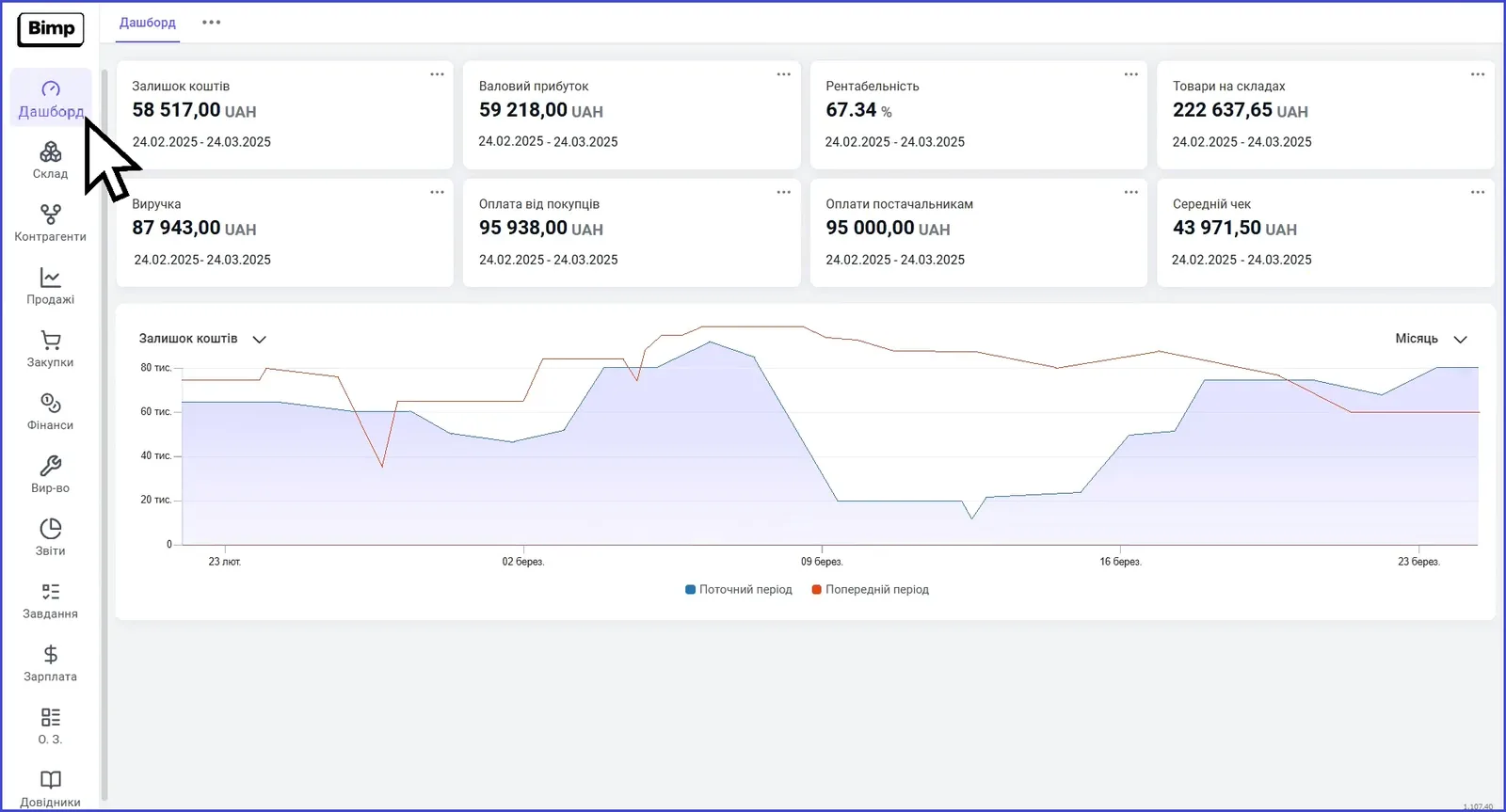
Which modules are in the menu
Each module is responsible for its own part of the business:
| Module | What it is for |
|---|---|
| Dashboard | An interactive panel with key indicators in real time: cash balance, revenue, gross profit, average check, payments. |
| Warehouse | Products and services, stock balances, reservations, stock transfers, stock posting, write-offs, stock counts, data import, cost allocation. |
| Counterparties | Customers and suppliers, their contacts and statistics. Together with the Sales module it works as a CRM. |
| Sales | The whole path from a customer order to reports: the register of orders, sales, returns, payments, prices, the Sales report, the sales plan. |
| Purchasing | Supplier orders, goods receipts, purchase planning. |
| Finance | Payments, cash flow, loading bank statements, the payment calendar, settlements with counterparties, entering opening balances. |
| Production | Production processes: from a customer order to the output of finished goods and allocation of costs to cost price. |
| Reports | Sales, income and expenses, cash flow, stock balances, settlements, and other analytics. |
| Tasks | Planning daily tasks and tracking their completion. |
| Payroll | Calculating and paying salaries to employees. |
| Fixed assets | Equipment and property used in production and in the company’s work, with depreciation accounting. |
| Directories | Permanent lists of data: counterparties, products, services, items, price lists, organizations, currencies. |
Dashboard
The Dashboard is the start page that shows the state of the business for the selected period. The tiles show cash balance, gross profit, profitability, value of goods in warehouses, revenue, customer and supplier payments, and average check. The chart compares the current period with the previous one.
There is also a separate dashboard inside the Sales module: new customers, new and completed orders for the week, plan completion for the day and month, and today’s orders, sales, and payments.
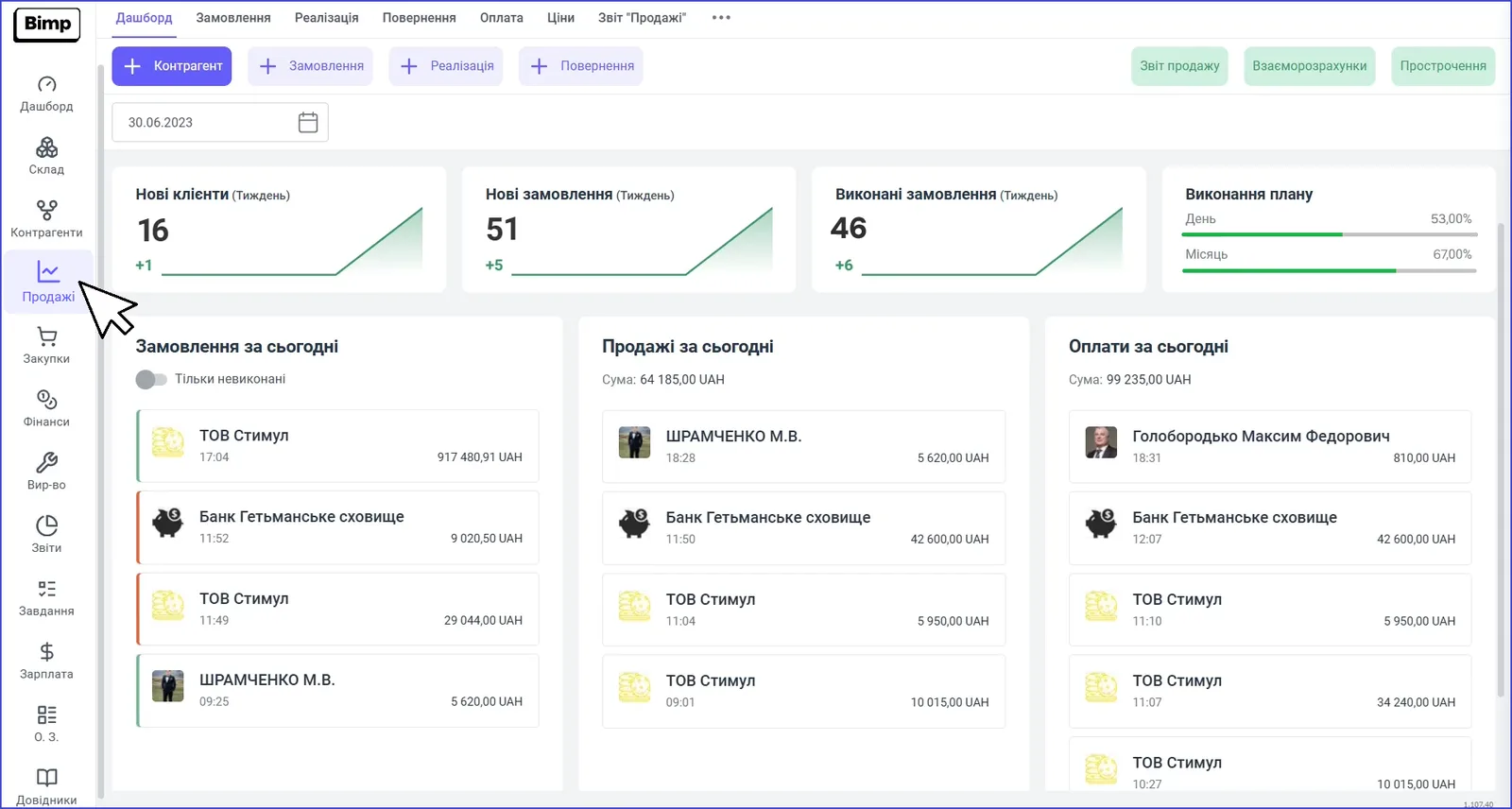
Warehouse, counterparties, and sales
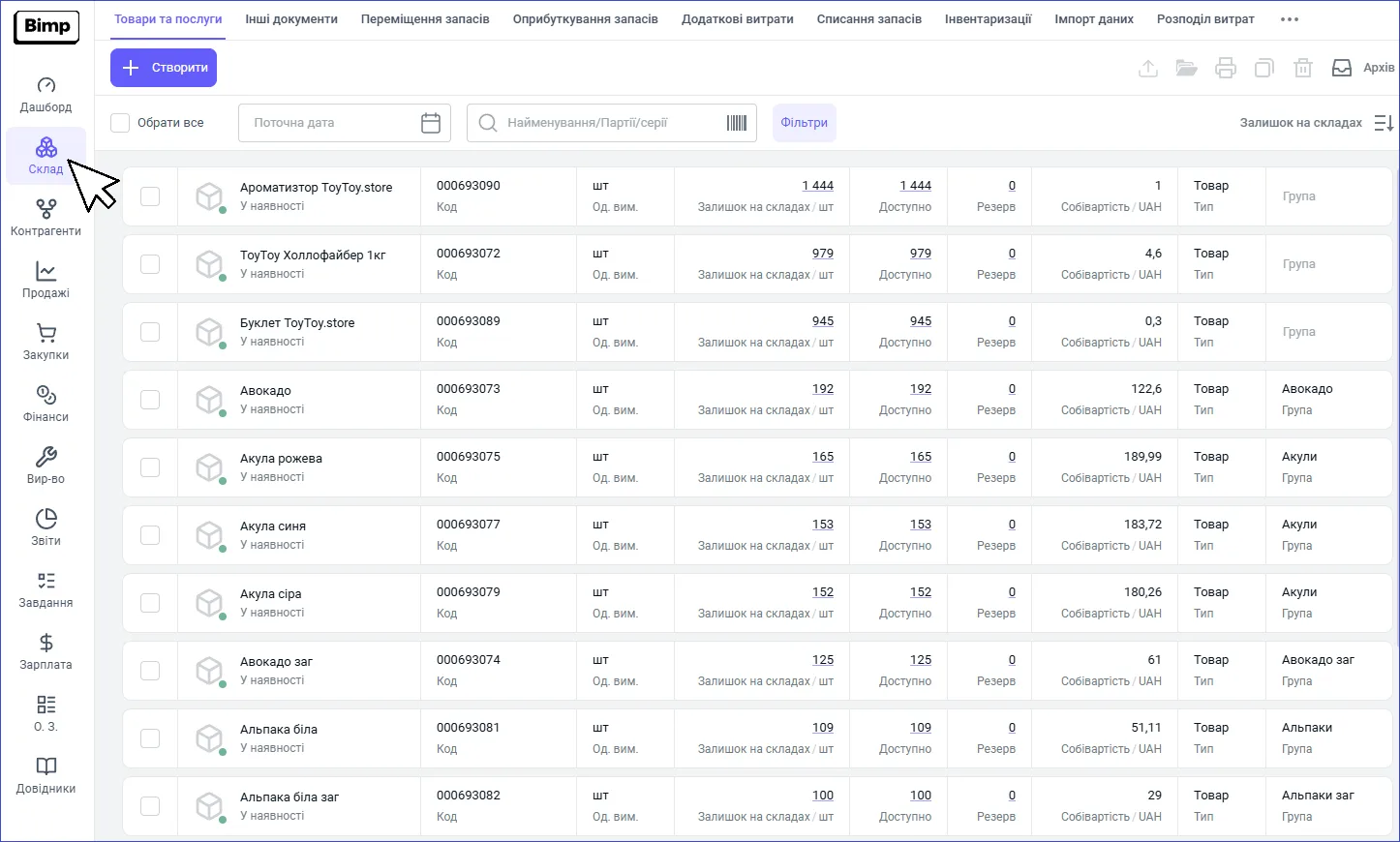
Warehouse is the workspace for controlling goods. On the “Products and services” tab you can see the warehouse balance, available quantity, reserve, and cost price of each item. Next to it are the tabs “Stock transfers”, “Stock posting”, “Additional costs”, “Write-offs”, “Stock counts”, “Data import”, and “Cost allocation”.
Counterparties stores data about customers and suppliers, and Sales contains the register of orders with order, shipment, and payment statuses, the amount, the recipient, and the delivery address. For details, see Sales from order to payment and Counterparty card.
Purchasing, finance, production, reports
Purchasing manages the supply of goods, raw materials, and services. An important part is purchase planning, which helps calculate the required quantity of goods. See Purchasing from order to payment.
Finance controls payments and cash flow, loading data from banks, the payment calendar, and settlements with counterparties.
Production covers the path from a customer order to the output of finished goods. See Production in Bimp.
Reports show sales volumes, income and expenses, cash flow, and other indicators. See Reports in Bimp.
Fixed assets and directories
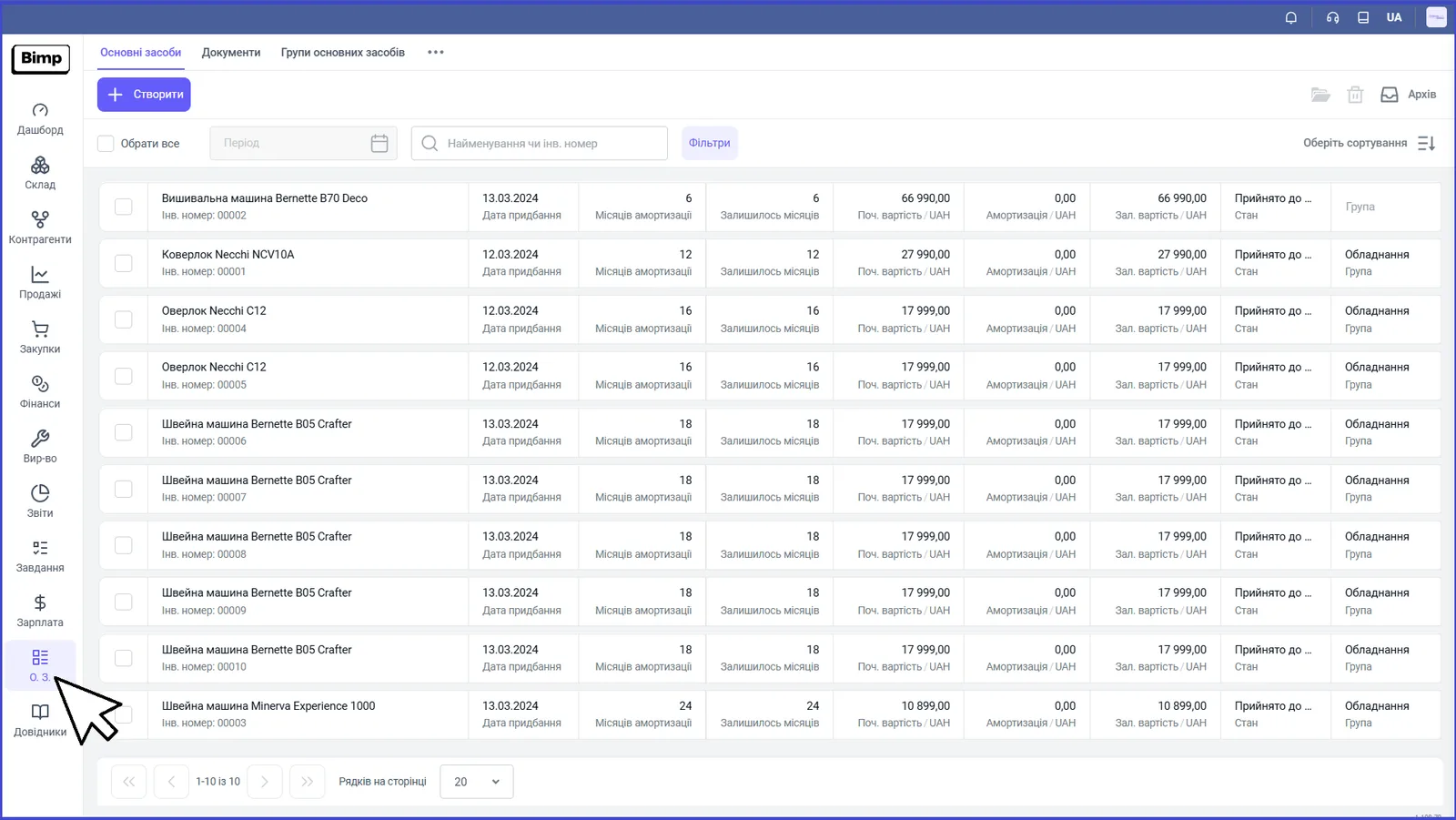
Fixed assets is accounting of equipment and property that is not part of finished goods but is used in production and sales. The register shows the inventory number, purchase date, depreciation months, initial and residual value, condition, and group.
Directories are lists of permanent data that documents refer to. The more complete they are, the faster documents are created, but you can add records during work as well. What the directories include is described in Directories: what they are and what types exist.
Settings and access
Company parameters open through the profile icon in the top right corner: the tabs “Company”, “Custom fields”, “Accounting settings”, “Users”, “Access roles”, “Security”, “Integration”, “Change lock date”, and “Personalization”. Access rights to modules are set by roles; see Access roles.
Where to start and in what order to set up the system is described in Launch checklist.
FAQ
Where is the module menu in Bimp?
On the left side of the screen there is a vertical panel with module icons: Dashboard, Warehouse, Counterparties, Sales, Purchasing, Finance, Production, Reports, Tasks, Payroll, Fixed assets, Directories. Inside a module, tabs for its sections are at the top.
Where do I start with Bimp?
Sign up, create a company, set up accounting, fill in the directories, and enter opening balances. The full order of steps is in the article "Launch checklist".
Can I restrict an employee's access to certain modules?
Yes. Access is set up by roles: each role defines which modules and actions are available to the user. See the article "Access roles".