
Sign-up and sign-in to your Bimp account
On this page
To register in Bimp, click "Sign in" on bimpsoft.com and choose "Continue with Google" or create an account with an e-mail and password and confirm your e-mail through the link in the message. To sign in, open app.bimpsoft.com/_/login and enter your e-mail and password.
How to register a Bimp account
You can register in two ways: with a Google account or manually with an e-mail and password. Both start the same way. If you need the big picture of the system, start with the overview of Bimp modules and interface.
-
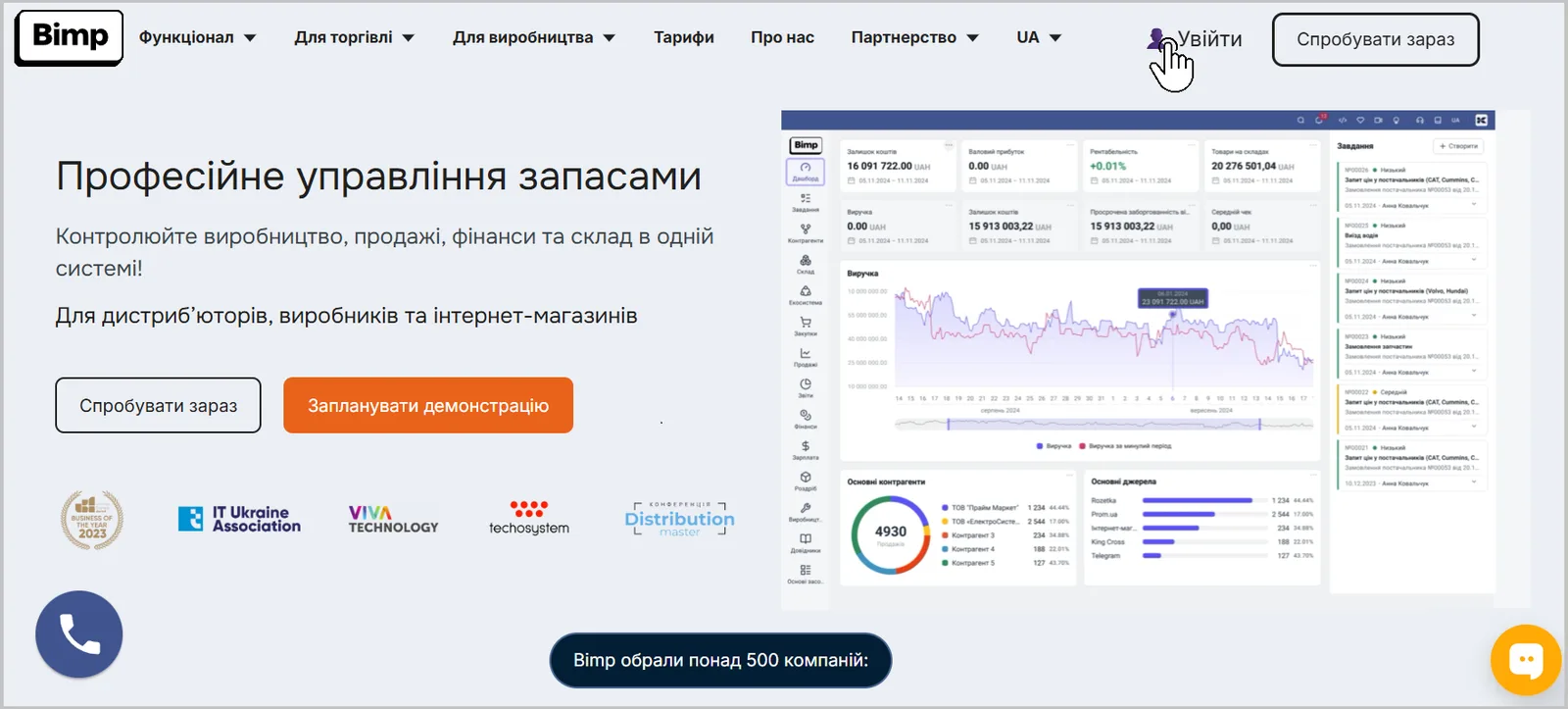
Open bimpsoft.com and click Sign in in the top right corner.
-
On the form that opens, choose how to register: Continue with Google or Create account.
Registering with Google
Registering with Google creates a Bimp account without a separate password.
- Click Continue with Google.
- Choose the Google account you want to use.
- Click Continue. By doing this you agree to the Privacy Policy and the User Agreement.
The account is created and you go straight into Bimp.
Registering with an e-mail and password
Manual registration requires filling in a form and confirming your e-mail.
-
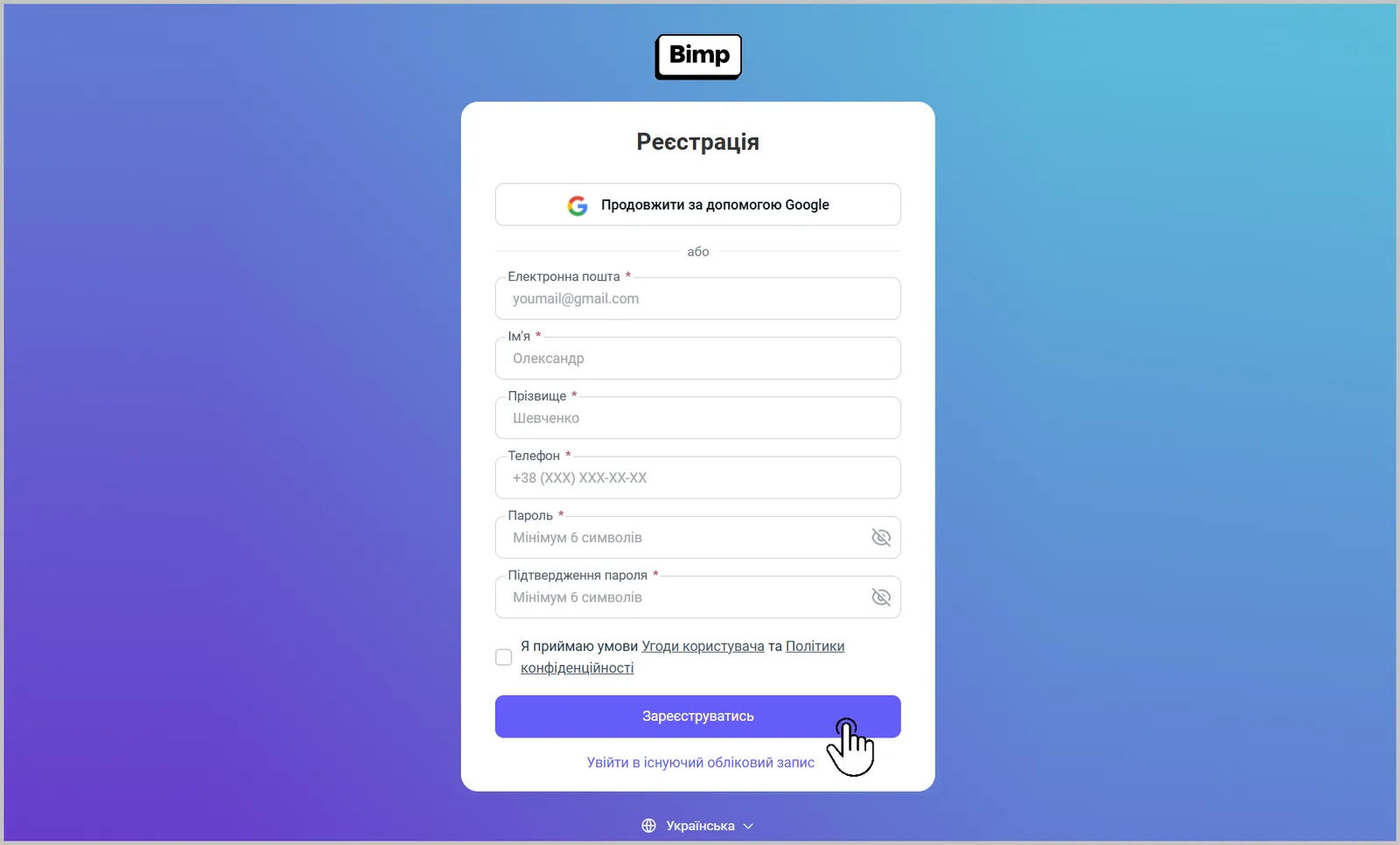
On the sign-in form, click Create account.
-
Fill in the fields “E-mail”, “First name”, “Last name”, “Phone”, “Password”, and “Confirm password”. All fields are required.
-
Select the checkbox “I accept the terms of the User Agreement and the Privacy Policy”.
-
Click Register.
-
Open the message sent to your e-mail and follow the link to complete the registration.
If you entered a wrong address, go back to the form and register again. If the message is not in your inbox, check the “Spam”, “Notifications”, and other folders.
How to sign in to Bimp
You can sign in with an e-mail and password or through Google.
-
Open the sign-in page app.bimpsoft.com/_/login or click Sign in on bimpsoft.com.
-
Enter the e-mail and password you used during registration and click Sign in. To sign in with Google, click the “Continue as
” button at the top of the form. 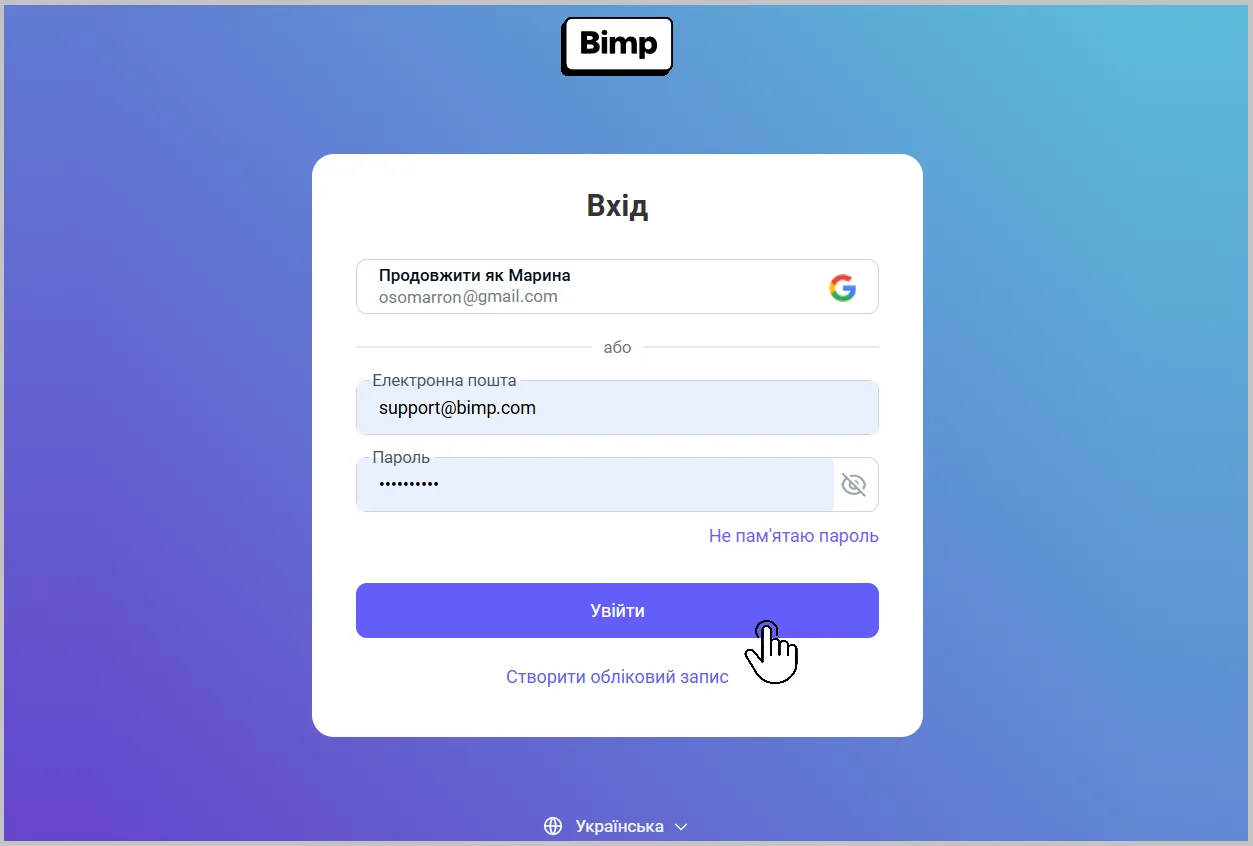
-
After you sign in, the start screen opens with the list of your companies. If you do not have a company yet, create one.
If you cannot sign in, see Cannot sign in: causes and solutions. If you forgot your password, see Password recovery.
What to do after registration
After your first sign-in, create a company, set up accounting, and add employees. The order of actions is in the launch checklist.
FAQ
Can I register in Bimp with Google?
Yes. Click "Continue with Google" on the sign-up or sign-in form, choose your Google account, and confirm that you accept the terms. A separate Bimp password is not needed in this case.
I did not receive the e-mail to confirm my address. What should I do?
Check the "Spam" and "Notifications" folders. If the message is not there, make sure the e-mail was entered without mistakes and repeat the registration with the correct address.
Where does the Bimp sign-in page open?
At https://app.bimpsoft.com/_/login or with the "Sign in" button in the top right corner of bimpsoft.com.
Can two people work under one login?
This is not recommended: simultaneous connections under one login count toward the session limit of your plan. Add a separate user for each employee.