
Cash flow by activity type report: cash flow by type of activity
On this page
The Cash flow by activity type report divides cash movements into operating, investing, and financing activities and shows the net cash flow and the balance at the start and end of the period in columns by days, months, or quarters. The activity type is set for each cash flow item.
What the report is for
The Cash flow by activity type report shows where the company gets money and what it spends it on, dividing transactions into three types of activity. It is built from management accounting data, and all figures are shown in the corresponding currency. The report is useful for an owner or financial director to assess the dynamics of cash flows and the structure of financing.
The three types of activity:
| Type | What it includes |
|---|---|
| “Operating” | Core activity: sales of goods, services, production, income from sales and related expenses |
| “Investing” | Purchase or sale of long-term assets (equipment, real estate, investments in other companies), income from such investments |
| “Financing” | Raising and repaying financing: loans, interest, loan repayments, dividends |
The activity type is set for each cash flow item, see Income and expense items.
How to generate the report
- Open Reports → Cash flow by activity type.
- Click Filters and select the period.
- Set the filters you need.
- In “Group by”, select, for example, “Activity type”, and in “Detail by” select “Cash flow items”.
- Select the column step: by days, by months, or by quarters.
- Click Generate report.
Filters and grouping
| Parameter | Value |
|---|---|
| Filters | Period, “Bank account”, “Cash desk”, “Cash flow item”, “Bank card”, “Activity type” |
| “Group by” | Activity type, bank accounts/cash desks, cash flow item groups |
| “Detail by” | Cash flow items, bank accounts/cash desks, cash flow item groups |
| Third-level switch | Shows the documents that make up an amount |
| “by days” / “by months” / “by quarters” | Report columns by period |
General rules for templates and downloads are in the article Reports in Bimp: filters, grouping, templates, export.
Report figures
The lower part of the table contains three total rows:
| Row | What it means |
|---|---|
| “Net cash flow” | The difference between all receipts and payments for the period |
| “Opening balance” | The total amount of funds in all accounts at the start of the period |
| “Closing balance” | The opening balance plus the net cash flow |
How to read the figures: an example
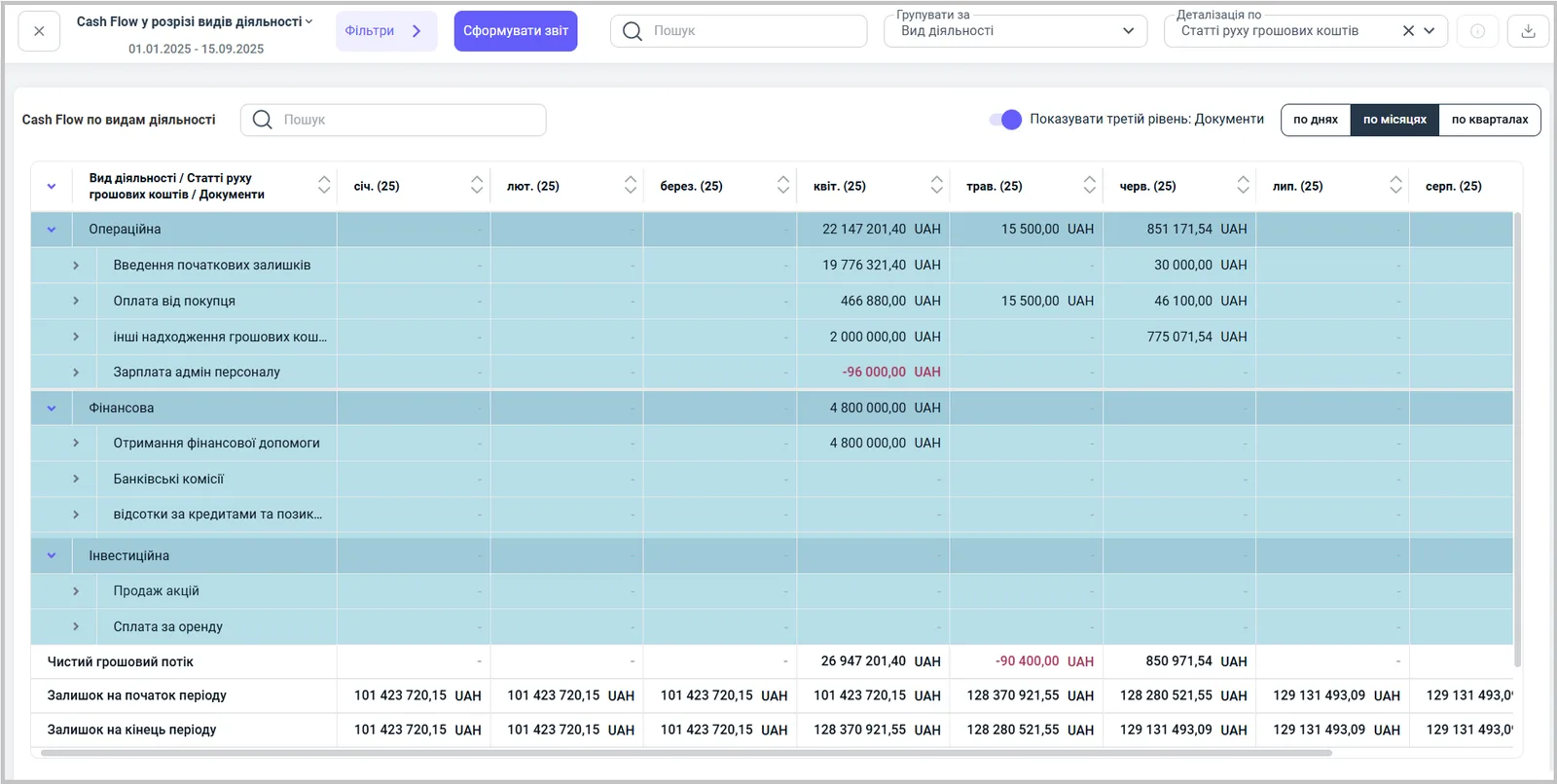
In April 2025, the “Operating” block shows 22,147,201.40 UAH and the “Financing” block shows 4,800,000.00 UAH under the item “Receipt of financial aid”; the net flow is 26,947,201.40 UAH. The opening balance in April of 101,423,720.15 UAH plus the net flow of 26,947,201.40 UAH gives a closing balance of 128,370,921.55 UAH. The closing balance of a month carries over to the start of the next one: in May, the opening balance is 128,370,921.55 UAH.
Why the figures do not match
An item is in the “wrong” block. The activity type is fixed to the item in the directory. Change it there, and the report will show the item in another block.
The total differs from the Cash flow report. This report groups money by activity types, so check that the period and the accounts and cash desks are the same: Cash flow.
The closing balance does not match the bank. Check that statements are posted and that opening balances are entered, see Cash balance in accounts and cash desks.
FAQ
Where is the activity type set for an item?
The activity type (operating, investing, financing) is set directly for each income and expense item in the items directory. If an item is assigned to the wrong type, the report shows it in a different block.
How does this report differ from the Cash flow report?
The Cash flow report groups by accounts and cash desks, while this report groups by activity types and shows the opening and closing balances in columns by period.
How do I see the documents that make up an amount?
Turn on the "Show third level: Documents" switch (in the interface it may be called "Show as the last level: Invoice orders").