
Stock with Reserve report: free stock in the warehouse
On this page
The Stock with Reserve report shows, for each warehouse and product, the actual stock and the quantity reserved on a chosen date; the difference between them is the quantity that can still be sold. To run it, open "Reports → Stock with Reserve" and click "Generate report".
What the Stock with Reserve report is for
The Stock with Reserve report shows how much of a product is physically in the warehouse and how much of it is already booked for Customer orders. It protects against two mistakes:
- Overselling. A manager accepts an order for a product that is already reserved for another client.
- Frozen capital. Goods lie in the warehouse because nobody sees their real free stock.
Example. A client wants 50 diffusers. The total stock is 60 pcs, but 20 pcs are reserved for another order. Only 40 pcs are free, so the manager offers the client 40 pcs right away and the rest after the next delivery.
General report mechanics are described in Reports in Bimp, and how a reserve is created is described in Stock reservation.
Which documents form the stock and reserve
The report shows the state based on posted documents.
| Document | Effect |
|---|---|
| Goods receipt | increases the stock |
| Customer order | forms the “Reserve” column |
| Sales of goods and services | decreases the stock on shipment |
| Customer return | increases the stock |
| Return to supplier | decreases the stock |
How to run the report
To see stock with reserve, open the report and click the generate button.
- Open Reports → Stock with Reserve.
- If needed, open the Filters panel and set the date, warehouse or product.
- Click Generate report.
Without changing filters, the report is generated for the current date and time, that is, it shows the situation “right now”. For a quick search by item code or name, use the “Search” field in the top panel.
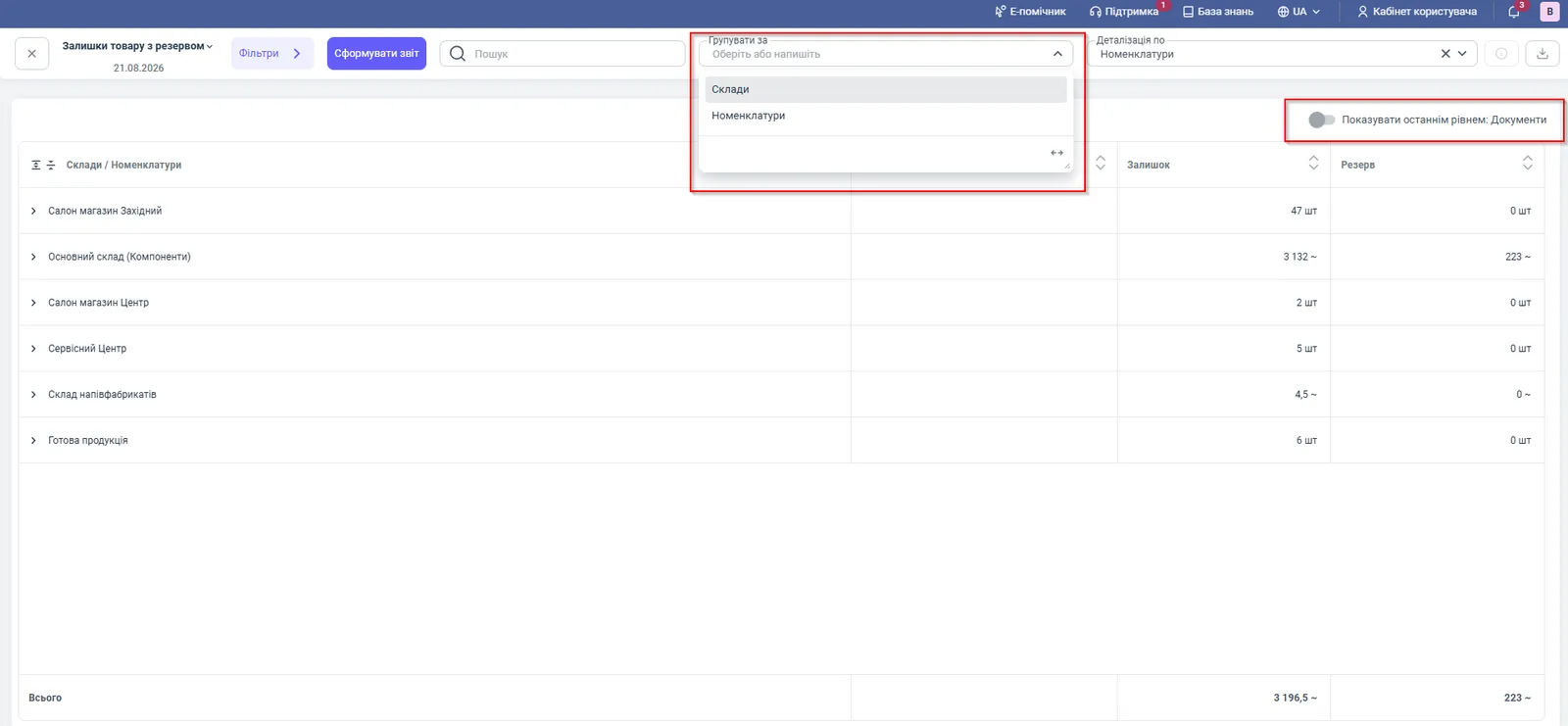
Indicators
The report has two numeric columns:
| Column | What it means |
|---|---|
| “Stock” | the actual quantity of goods received into the warehouse |
| “Reserve” | the quantity booked for Customer orders; it cannot be sold again |
The “Total” row sums the stock and reserve across all rows. Free stock is not shown as a separate column in the report: calculate it as “Stock” minus “Reserve”.
Filters and grouping
| Parameter | Value |
|---|---|
| “Date” filter | the accounting date for which you need the stock |
| “Warehouse” filter | stock in one warehouse, for example “Main warehouse” |
| “Product” filter | the status of a specific product |
| “Group by” | “Warehouses” (default) or “Products” |
| “Detail by” | “Products”: the full list of products with codes |
| “Show as last level: Documents” switch | shows the source documents that created the reserve or movement |
Selected settings can be saved as a template, see Reports in Bimp.
How to read the numbers: an example
Suppose the report is grouped by warehouses. The row “Main warehouse (Components)” has stock of 3,132 and a reserve of 223. Free for new sales: 3,132 − 223 = 2,909. At the warehouse “Western showroom” the stock is 47 pcs and the reserve is 0 pcs, so all of the stock is free. The “Total” is 3,196.5 of stock and 223 of reserve.
Why the numbers do not match
There is stock, but it cannot be sold. Most likely the goods are reserved. Expand the row to documents and see which Customer order they are reserved for.
The reserve is larger than you expect. A reserve is kept until the order is cancelled, shipped, or the reservation period ends. See Stock reservation.
The stock differs from the Stock Movement report. This report shows the current stock on one date, while Stock Movement shows the balance at the start and end of a period. For comparison, set the same date.
There is no breakdown by storage location. The report shows stock at the level of warehouse and product, without warehouse addresses; for empty locations, see the Empty Storage Locations report.
FAQ
How do I calculate how much of a product can be sold?
Subtract the “Reserve” column from the “Stock” column. For example, stock of 60 pcs and a reserve of 20 pcs mean 40 pcs are free.
What date is the report generated for?
By default, for the current date and time the report is opened. In the “Date” filter you can select another accounting date.
How do I see which order the goods are reserved for?
Turn on the “Show as last level: Documents” switch. Under the product row you will see the documents that created the reserve.