
Receipts by Supplier analysis: order fulfillment and under-deliveries
On this page
The Receipts by Supplier analysis report compares what was ordered from suppliers with what was actually received and returned, and shows the balance of unfulfilled deliveries in quantity and amount. Open "Reports → Receipts by Supplier analysis", enter a period and click "Generate report".
What the report is for
The Receipts by Supplier analysis report shows how well suppliers have fulfilled your orders: how much was ordered, how much arrived at the warehouse, how much was returned and how much is still expected. It helps you spot partial and late deliveries in time, which freeze money and stop sales or production because of a shortage of raw materials, and compare the reliability of suppliers.
For money settlements with a supplier, see the Supplier Settlements report. The mirror report for customers is Shipments by Customer analysis. General report mechanics are described in Reports in Bimp.
How to run it
To get the report, select a period and generate it.
- Open Reports → Receipts by Supplier analysis.
- Open the left Filters panel and enter the “Period”.
- If needed, set other filters (see below).
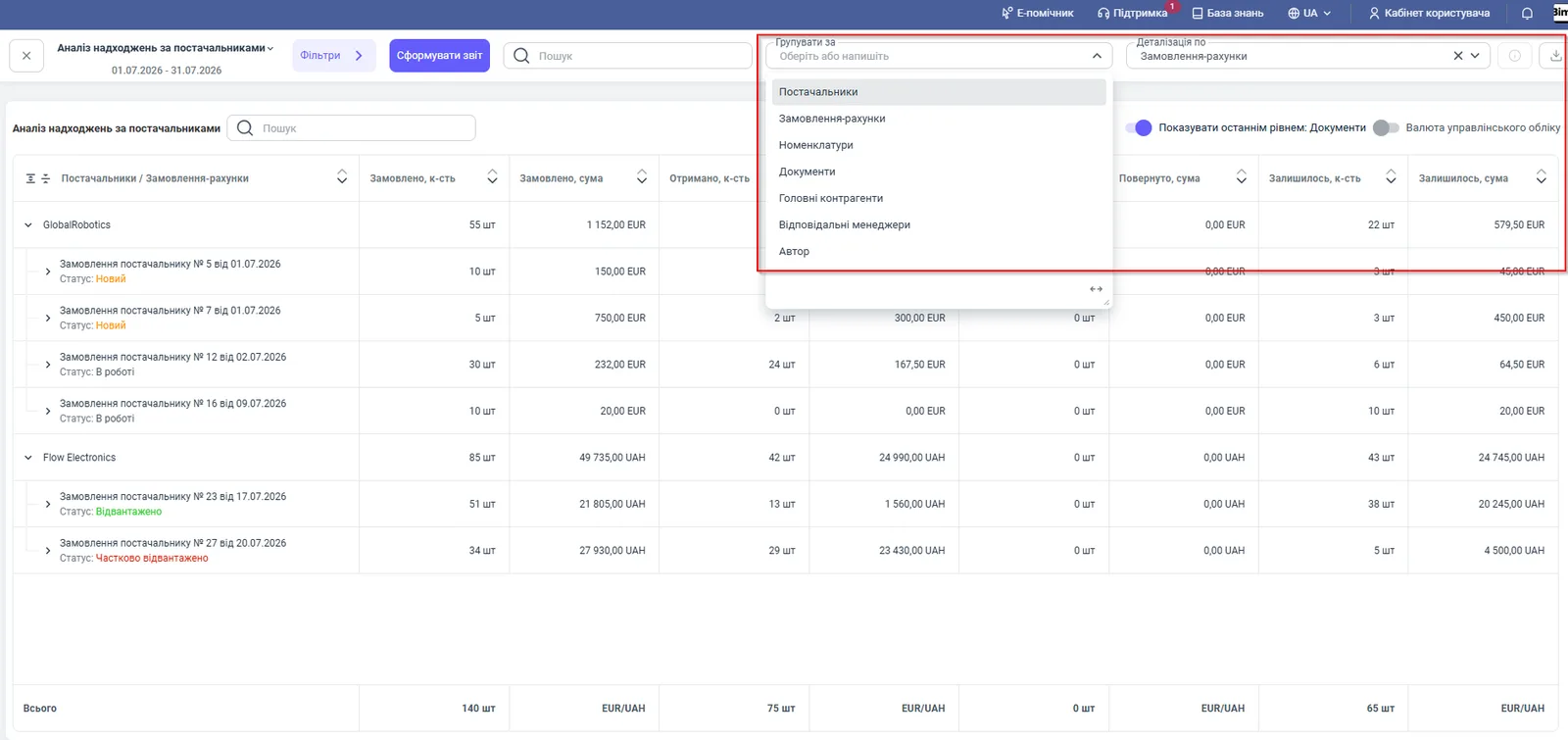
- In the top panel, set “Group by” and “Detail by”.
- Click Generate report.
Indicators
The table shows quantity and amount by supplier orders.
| Column | What it means |
|---|---|
| “Suppliers / Order invoices” | The supplier and their orders with statuses (“New”, “In progress”, “Shipped”, “Partially shipped”); statuses are highlighted in color |
| “Ordered, qty”, “Ordered, amount” | The volume specified in the orders |
| “Received, qty”, “Received, amount” | What actually arrived under Goods receipt documents |
| “Returned, qty”, “Returned, amount” | What was returned to the supplier under return documents |
| “Remaining, qty”, “Remaining, amount” | The unfulfilled part of the order: under-delivery and accounts payable for the goods |
The “Total” row sums the quantities, and shows the amounts separately by currency (EUR/UAH).
Filters and grouping
Filters narrow the selection, and grouping sets the levels of the table.
| Element | Value |
|---|---|
| “Period” | The time range of the analysis |
| “Supplier” | One supplier for reconciliation |
| “Lines of business”, “Projects” | A breakdown by line of business or project |
| Additional analytics | “Order”, “Contract”, Goods receipt documents, “Status”, “Responsible manager”, “Author” |
| “Show closed debts” | All movements for the supplier, not only the current debt (off by default) |
| “Group by” | “Suppliers”, “Order invoice”, “Products”, “Documents”, “Parent counterparties”, “Responsible managers”, “Author” |
| “Detail by” | “Order invoices”, “Products”, “Documents”, “Responsible managers”, “Author” |
| “Show as last level: Documents” | Expands to specific documents |
| “Management accounting currency” | Converts amounts to the base currency |
Save a frequently used set of filters with the Save as new template button.
Example of use
A purchasing manager checks orders to the supplier Flow Electronics for July 2026.
| Order | Status | Ordered | Received | Remaining |
|---|---|---|---|---|
| No. 23 dated 17.07.2026 | Shipped | 51 pcs, 21,805 UAH | 13 pcs, 1,560 UAH | 38 pcs, 20,245 UAH |
| No. 27 dated 20.07.2026 | Partially shipped | 34 pcs, 27,930 UAH | 29 pcs, 23,430 UAH | 5 pcs, 4,500 UAH |
On order No. 27, the supplier under-delivered 5 pcs worth 4,500 UAH: this is an unfulfilled obligation and is worth clarifying. Order No. 23 has the status “Shipped”, but only 13 of 51 pcs were received, so this discrepancy needs checking. For another supplier, GlobalRobotics, 24 pcs were received on order No. 12 for 30 pcs, leaving 6 pcs worth 64.50 EUR.
Why the numbers do not match
The order is not in the report. By default only open debts are shown. Closed orders appear after you turn on “Show closed debts”.
“Received” shows less than what actually arrived. The “Received” column includes only posted Goods receipt documents that are linked to a supplier order. Open the receipt and check that it was created based on the order. See Creating a document based on another.
“Remaining” does not equal “Ordered” minus “Received”. Returns to the supplier are also taken into account: the balance is calculated with the “Returned” column. See Returns to supplier.
Amounts for a supplier differ from the settlements report. This report counts goods orders, while settlements count money debts across all purchases and payments.
FAQ
How can I see which orders a supplier has not fully fulfilled?
Open the report and look at the “Remaining, qty” and “Remaining, amount” columns: they show the difference between what was ordered and what was received or returned. The order status is highlighted in color.
Why does the report not show fulfilled orders?
By default the report shows only the current debt. Turn on the “Show closed debts” checkbox to see all movements for the supplier.
How is this report different from Supplier Settlements?
Receipts by Supplier analysis counts quantity and amount by orders (ordered, received, returned, remaining). Supplier Settlements shows money: purchases, payments and the debt balance.